Table of Contents
InfluxDB 3 Explorer 1.9 makes it easier to work with your existing queries. Whether you’re migrating Flux queries to SQL or you’ve been writing in InfluxQL for years, this release helps bring your existing queries forward instead of starting from scratch.
For teams moving to v3 from earlier versions of InfluxDB, query migration is often one of the last major hurdles. Explorer 1.9 introduces an AI-assisted Flux-to-SQL converter to help automate that process, while also bringing InfluxQL directly into Explorer.
On top of that, this release adds two new live sample data simulators, an improved plugin log viewer, search across every list page, and query error history.
Convert Flux queries to SQL
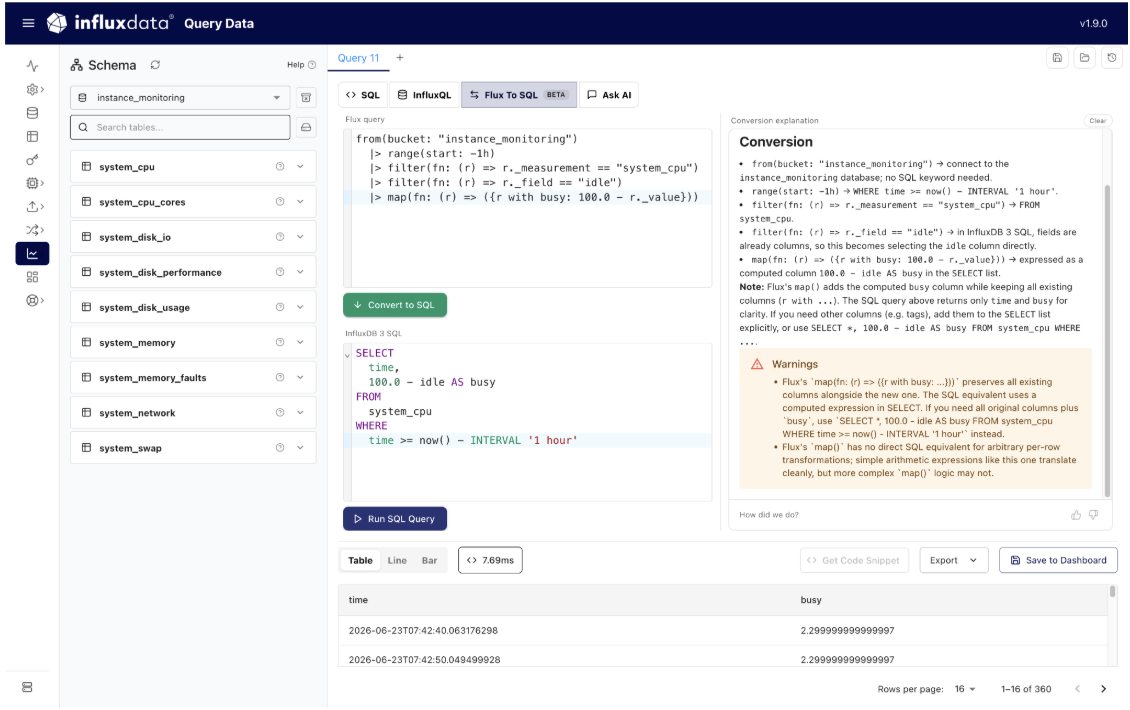
InfluxDB 3 uses SQL and InfluxQL to query data, but many teams still have Flux queries powering dashboards and alerts they’d rather not rewrite by hand. The new Flux-to-SQL converter (beta) does that translation for you.
You’ll find it as a new tab in the Data Explorer, right next to SQL and InfluxQL. Paste in a Flux query, click Convert to SQL, and Explorer returns the equivalent InfluxDB 3 SQL in a side-by-side Flux and SQL layout. The conversion is powered by Kapa.ai, the same AI assistant behind the Ask AI helper on our documentation site.
Here’s a typical example. Take this Flux query that reads CPU idle and derives a “busy” percentage from it:
from(bucket: "instance_monitoring")
  |> range(start: -1h)
  |> filter(fn: (r) => r._measurement == "system_cpu")
  |> filter(fn: (r) => r._field == "idle")
  |> map(fn: (r) => ({r with busy: 100.0 - r._value}))
Click Convert, and you get back SQL:
SELECT
  time,
  100.0 - idle AS busy
FROM
  system_cpu
WHERE
  time >= now() - INTERVAL '1 hour'
It isn’t a black box, either. The tool explains each conversion, walking through the translation line by line. The range() call becomes the WHERE time clause, the _measurement filter becomes the FROM table, and the _field filter narrows things to the idle field, which in InfluxDB 3 is just a native column (no pivot() needed). The Flux map() that computes busy turns into a plain expression in the SELECT list, 100.0 - idle AS busy. The panel also flags a behavioral difference worth noting: Flux’s map() keeps every existing column, while the SQL selects only time and computed busy, so if you want the original idle alongside it, add it to the SELECT list or use SELECT *. When a database is selected, you can hit Run SQL Query and execute the converted query right there.
One note: the converter is beta and AI-generated, so its output can vary. Review the converted SQL before running your queries, and use the thumbs-up and thumbs-down buttons under the explanation to help improve future conversions.
InfluxQL comes to the Data Explorer
Many InfluxDB users have years of InfluxQL muscle memory, dashboards, and tooling built around it. In Explorer 1.9, InfluxQL is now a first-class query language. There’s an InfluxQL tab right beside SQL, you can run InfluxQL directly against your databases, save and load queries as InfluxQL, and view them in your query history alongside SQL. This matters because some things are simply more natural in InfluxQL. The schema-exploration commands are the clearest case: there’s no SQL equivalent for how InfluxQL asks a measurement which tag values it has. For example:
SHOW TAG VALUES FROM "bird_tracking" WITH KEY = "species"That returns the distinct species in the table as a tidy key/value list. The same goes for SHOW MEASUREMENTS, SHOW TAG KEYS, and SHOW FIELD KEYS, along with time series idioms like GROUP BY time(5m) fill(previous) that don’t have a one-to-one SQL counterpart. If those are part of how you work, you no longer have to leave Explorer to use them.

InfluxQL visualizations, with per-tag series
InfluxQL results aren’t stuck in a table either. You can render them as line and bar charts, and Explorer automatically groups series by tag. Take this query:
SELECT mean("speed") FROM "bird_tracking"
WHERE time > now() - 1h
GROUP BY time(1m), "species" fill(none)
It produces one line per species, color-coded with a legend, exactly as you’d expect coming from earlier versions of InfluxDB. Group by a tag, get a series per tag value; switch between line and bar without rewriting anything.

Two new live sample data simulators
In 1.8, we added a Live Data tab to the Sample Data page, with Processing Engine plugins that continuously write data into a database on a schedule, so you have something moving to build dashboards and alerts against. 1.9 adds two more to the lineup, alongside the System Metrics Collector and US Weather Sampler.
The Bird Data Simulator generates synthetic bird telemetry: a persistent flock of named birds that move on each scheduled run with sinusoidal flight speed, drifting headings, and some temperature jitter. Each run writes to a bird_tracking measurement with species, name tags, and fields like speed, heading, latitude, and longitude. Because it’s naturally multi-series across many species, it pairs well with the per-tag InfluxQL charts above, and the only settings are volume controls, so it’s hard to misconfigure.

The Signal Generator is for when you want a clean, controllable signal instead of a realistic one. It produces composable waveforms (sine, square, triangle, sawtooth, noise, and spikes), and the default preset, a slow sine with light noise and occasional spikes, is immediately useful for testing alerts and anomaly detection. It fills gaps between runs so your data stays continuous, configurable, and reliant only on the Python standard library.

As with the other live plugins, you’ll need InfluxDB 3 Core or Enterprise with the Processing Engine enabled.
Quality-of-life improvements
A release isn’t only headline features. A few smaller changes in 1.9 take some daily friction out of Explorer.
A better plugin log viewer. Logs now open in a dedicated viewer with line numbers and color-coded output, a search box for finding a specific message, level filters for Info, Warn, and Error, and an Export button. Now you can filter straight to the errors, search for the exact message, and spot why a plugin misbehaved at a glance.

Search across every list page and a smarter database selector. Manage Databases, Tables, Tokens, the Plugin Dashboard, and server configuration now have search boxes, so you can find an item by typing a few characters. The database selector is also an autocomplete picker that works the same everywhere it appears, which saves time once you have more than a handful of databases.
Query error history. The query History panel now has an Errors tab next to your query history. Every failed query is captured with a timestamp, the query language, the database it ran against, the exact query text, and the full error message. So if a query fails, you can look back at precisely what went wrong instead of trying to reconstruct it.

The SQL editor also gets a Format button that cleans up and reflows a query for readability, handy for pasted one-liners. And the plugins page gets a Run now button, so you can trigger a plugin on demand instead of waiting for its next scheduled run, good for testing before you trust it to a schedule.
Try Explorer 1.9
If you’ve been putting off migrating Flux or you’ve been missing InfluxQL in the Explorer UI, this release closes both gaps, and the new simulators give you continuously flowing data to try it all against. If you skipped the last post, What’s New in InfluxDB 3 Explorer 1.8 covers streaming subscriptions, smarter sample data, line protocol validation, and retention controls.
To update InfluxDB 3 Explorer, pull the latest Docker image: docker pull influxdata/influxdb3-ui
To learn more, check out the InfluxDB 3 Explorer documentation and the 1.9 release notes.


